
What Is a KVM Switch? A Complete Guide to Its Features, Benefits, and Uses
Discover what a KVM switch is, how it works, and why it is useful for managing multiple computers. Learn about its types, key features, benefits, and tips for choosing the right KVM switch for your setup.
Introduction
In today's digital world, technology plays an essential role in our daily lives. From offices and IT companies to gaming setups and data centers, many people use multiple computers to perform different tasks. However, managing several computers with separate keyboards, mice, and monitors can take up valuable desk space and increase costs.
A KVM Switch offers a simple and efficient solution to this problem. It allows users to control multiple computers using a single keyboard, video monitor, and mouse.
In this article, we will explore what a KVM Switch is, how it works, its different types, its advantages, and how to choose the right one for your needs.
What Is a KVM Switch?
KVM stands for Keyboard, Video, and Mouse. A KVM Switch is a hardware device that allows users to control two or more computers using one set of peripherals.
For example, if you have a desktop computer and a laptop, you can connect both devices to a KVM Switch and use the same keyboard, mouse, and monitor for both systems. Instead of disconnecting and reconnecting cables, you can switch between computers by pressing a button or using a supported keyboard shortcut.
KVM Switches are widely used in offices, IT departments, server rooms, home offices, and professional workstations.
How Does a KVM Switch Work?
A KVM Switch connects multiple computers to a shared set of input and display devices. It routes keyboard and mouse signals to the selected computer and sends that computer's video output to the connected monitor.
Here is how it typically works:
- Connect your computers to the KVM Switch using the appropriate USB and video cables.
- Connect your keyboard and mouse to the designated USB ports.
- Connect your monitor to the video output port.
- Select the computer you want to control using the switch button or a supported keyboard shortcut.
Once connected, you can move between computers without changing your entire workstation setup.
Types of KVM Switches
1. USB KVM Switch
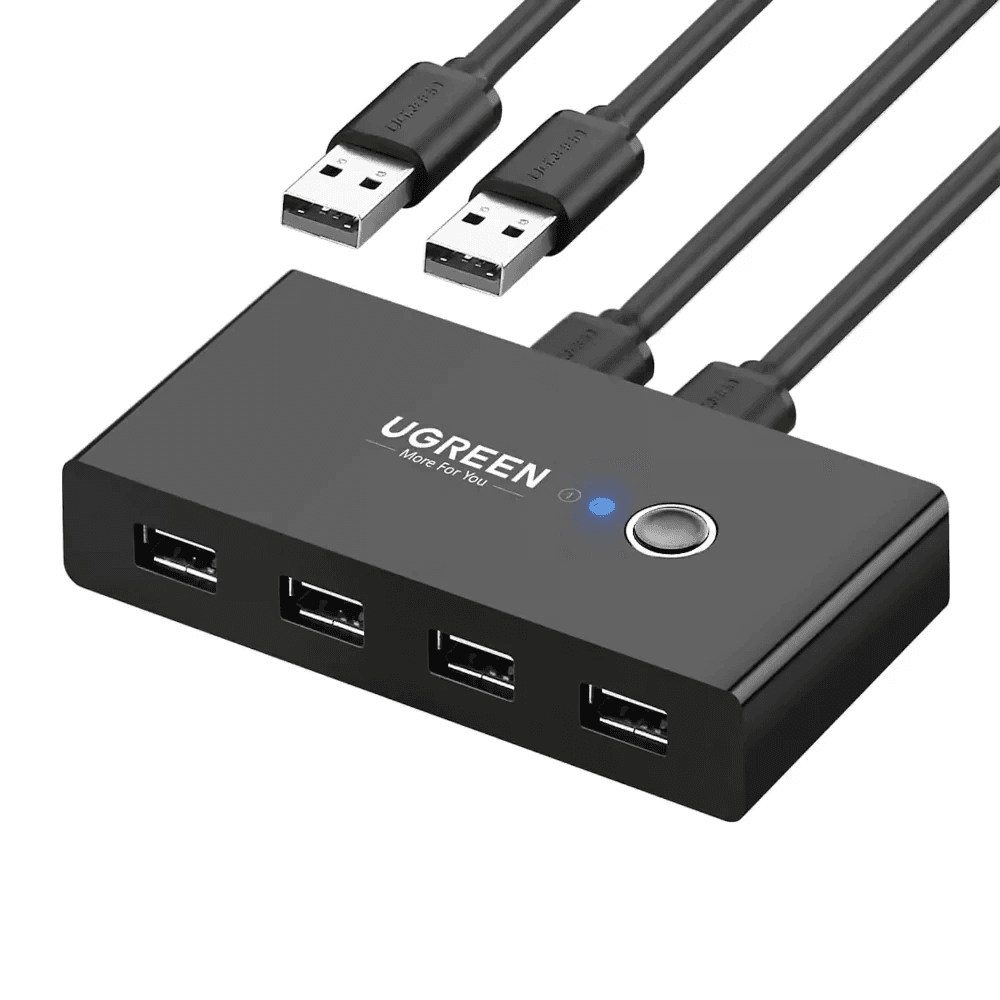
A USB KVM Switch allows users to share USB peripherals, such as keyboards and mice, between multiple computers. Some models also support video switching, while others are designed primarily for USB devices.
It is a practical choice for home offices and basic workstation setups.
2. HDMI KVM Switch
An HDMI KVM Switch supports computers and monitors that use HDMI connections. It combines keyboard, mouse, and video switching in a single device.
Before purchasing one, check the supported HDMI version, resolution, refresh rate, and compatibility with your computer and monitor.
3. DisplayPort KVM Switch
A DisplayPort KVM Switch is suitable for users who need high-resolution displays or higher refresh rates. It can be useful for gaming, graphic design, video editing, and professional workstation environments.
Make sure the switch supports your required resolution, refresh rate, and DisplayPort features.
4. Dual-Monitor KVM Switch
A Dual-Monitor KVM Switch allows users to connect two monitors and switch between multiple computers. Depending on the model, it may support extended desktops, allowing different applications to appear on separate displays.
This type of switch is especially useful for developers, financial professionals, designers, and multitasking users.
5. Network-Based KVM Solutions
Some KVM solutions allow users to access and manage computers remotely over a network. Enterprise-grade options may provide remote keyboard, video, and mouse control for servers without requiring direct physical access.
These solutions are particularly valuable in data centers and IT management environments.
Key Benefits of Using a KVM Switch
1. Saves Desk Space
One of the biggest advantages of a KVM Switch is that it reduces desktop clutter. Instead of maintaining separate keyboards, mice, and monitors for every computer, you can share compatible peripherals.
2. Improves Productivity
Switching between computers becomes faster and more convenient. This is particularly useful for professionals who work with multiple operating systems or separate work and personal computers.
3. Reduces Equipment Costs
A KVM Switch can reduce the need to purchase additional peripherals for every computer. Depending on your setup, this may help lower equipment costs.
4. Simplifies Cable Management
Using a KVM Switch can make your workspace cleaner and easier to manage. Fewer peripherals on your desk can mean a more organized working environment.
5. Supports Multiple Workflows
Developers may use one computer for coding and another for testing. IT professionals may manage several systems, while content creators may separate editing and administrative tasks.
A suitable KVM Switch makes these workflows easier to manage.
Common Uses of KVM Switches
KVM Switches are useful in several environments.
- Home offices: Control a personal computer and a work laptop using the same peripherals.
- IT departments: Access and manage multiple computers from a centralized workstation.
- Data centers: Operate servers using specialized KVM equipment.
- Gaming setups: Share compatible peripherals between gaming computers and other systems.
- Software development: Switch between development, testing, and production-related machines.
- Video editing and design: Manage multiple workstations while sharing compatible displays and input devices.
How to Choose the Right KVM Switch
Choosing the right KVM Switch depends on your computer setup and intended use. Consider the following factors before buying one.
Number of Computers
Determine how many computers you want to connect. Common options support two, four, or more computers.
Video Compatibility
Check whether your devices use HDMI, DisplayPort, or another supported video interface. Make sure the switch supports your monitor's resolution and refresh rate.
USB Support
Verify that the switch supports your keyboard, mouse, webcam, storage devices, or other peripherals as needed. Some devices support only basic USB input devices.
Dual-Monitor Support
If you use two or more monitors, select a KVM Switch that supports your display configuration and the required number of video outputs.
Switching Method
Some switches use physical buttons, while others offer keyboard shortcuts or remote controls. Choose the method that best fits your workflow.
Operating System Compatibility
Check compatibility with your computers' operating systems and any special devices you plan to connect.
Power Requirements
Some KVM Switches operate through USB power, while others require an external power adapter. Higher-performance models may need dedicated power for stable operation.
KVM Switch vs. USB Switch: What Is the Difference?
Although the two devices may look similar, they serve different purposes.
A USB Switch shares USB peripherals, such as a keyboard, mouse, or printer, between multiple computers. It does not necessarily switch video signals.
A KVM Switch typically combines keyboard, mouse, and video switching, allowing you to control multiple computers through a shared workstation.
If you only need to share USB devices, a USB Switch may be sufficient. If you want to share a monitor as well as a keyboard and mouse, a KVM Switch is generally the better option.
Are There Any Disadvantages?
Despite its advantages, a KVM Switch has a few limitations.
- Compatibility issues: Some switches may not support specific resolutions, refresh rates, or advanced USB devices.
- Additional cost: High-performance and multi-monitor models can be expensive.
- Switching delays: Some devices introduce a brief delay when changing computers.
- Extra cables: Multi-computer setups still require suitable cables and connections.
- Feature limitations: Certain switches may not support advanced gaming features, USB-C power delivery, or specialized peripherals.
Reviewing the technical specifications before purchasing can help you avoid these problems.
Is a KVM Switch Worth Buying?
A KVM Switch can be a valuable investment if you regularly work with multiple computers and want a cleaner, more efficient workspace.
For basic office use, a simple two-port KVM Switch may be enough. For gaming, professional design, or demanding workstation tasks, a model with suitable video specifications and peripheral support may be a better choice.
The best option depends on your number of computers, monitor requirements, budget, and the devices you need to share.
Conclusion
A KVM Switch is a practical technology solution for anyone who needs to manage multiple computers from a single workstation. It can save desk space, simplify cable management, reduce equipment costs, and improve productivity.
Whether you are a student, developer, gamer, IT professional, or business owner, choosing the right KVM Switch can make your computing setup more convenient and organized.
Before buying one, compare its computer capacity, video interfaces, resolution support, USB features, and compatibility with your existing equipment.
In short, a KVM Switch is an excellent choice for creating a more organized and efficient multi-computer workspace.
Frequently Asked Questions (FAQs)
1. What does KVM stand for?
KVM stands for Keyboard, Video, and Mouse.
2. Can a KVM Switch connect two computers to one monitor?
Yes. A compatible KVM Switch can connect multiple computers to one monitor and allow you to switch between them.
3. Does a KVM Switch work with laptops?
Yes. Many KVM Switches support laptops, provided they have compatible video and USB connections or suitable adapters.
4. Can I use a KVM Switch for gaming?
Yes. However, gamers should check supported resolution, refresh rate, response behavior, and compatibility with gaming peripherals.
5. Does a KVM Switch require software?
Most basic hardware KVM Switches do not require additional software. Some advanced models may include software or require configuration for certain features.
6. Is a KVM Switch the same as a USB Hub?
No. A USB Hub expands the number of USB ports available to a computer, while a KVM Switch allows users to switch shared peripherals and, in most KVM configurations, video between multiple computers.
Need an Itemized Quantity Takeoff for Your Next Job?
Our certified estimators review your blueprints, extract CSI 16-Division schedules, and format subcontractor bid packages.